Bingo Buddy is a tracker for your own paper bingo cards (75-ball). Photograph your sheet, check the numbers it read, then tap each number as the caller calls it. Every card shows how close it is to a bingo, so you don't miss one. Bingo Buddy doesn't call numbers or play for you: your paper cards and the caller always come first. It's free, there's no account, and it works without a connection.
Check your hall's rules about using phones during a game.
Bingo Buddy is a helper. Always check your paper card before you call bingo.
Both ways work. You can scan each game's cards when it comes up, as above. Or, before the session, use Getting ready on Today: plan the games (each one's pattern, wild and name), use a program, or tap Scan cards ahead and scan all your sheets. Then pick each game's sheet when it starts. What you set up is kept for the session.
Sheets are numbered in the order you scan them: the first sheet you save in a session is Sheet 1, the next is Sheet 2, and so on. Its colour is shown too, like "Sheet 4 · Yellow". A new session starts again at Sheet 1.
When Bingo Buddy can tell it's the same sheet from another pack, it adds the cards to the sheet you already have. Review tells you before you save, for example "Joins Sheet 2, from another pack: 12 cards in all.", and which games will play both packs. If it isn't sure, Review asks, for example "Another pack of Sheet 2?", with a button to add it.
If that's not what you want, tap Change sheet and choose Its own sheet. Until a game has been played on a sheet, you can also change it later: open Your sheets on Today, choose the sheet, then tap Make it its own sheet for one pack, or Add to another sheet.
Before you save: on Review, tap the card, tap the wrong square and type the number that's really there. Numbers Bingo Buddy wasn't sure of are marked for you to check, and you can compare the card with your photo. If a card was cut off or missed, use Adjust cards or Missing a card? Add it, or take another photo.
During a game: tap the pencil on the card (or Fix card), tap the wrong number and type what's really on your card. Calls so far are kept. Leave Also fix it for later games this session on to fix the saved card too. If a square was left blank, you can tap it on the card to mark it when its number is called.
Yes. Tap Type a card (on Today, or Type on the camera screen). Tap a square and type its number; the keypad moves to the next square for you. The free space in the middle is already on. If you have sheets already, Which sheet is it on? lets you add the card to one of them or start a new sheet.
Tap PATTERN to choose the game the caller names: Single, Double or Triple Bingo, Line Across, Diagonal, Four corners, Postage stamp, Kite, X, Plus, Six pack, frames, Coverall, the letters L, M, P, T and Z, or Draw your own. Changing the pattern keeps the calls and checks every card again. If four corners count as a bingo where you play, turn on Four corners counts as a bingo. For a game played in stages on the same sheet (say, a single bingo and then a coverall), use Played in stages? Add what comes next.
Tap WILD when the caller announces wild numbers: odd numbers, even numbers, numbers ending in a digit (you can pick more than one), the same ending as the first number called, or the four corners free. Wild squares show a star, and the wild is for that game only.
If your hall plays the same games every week, save them once as a program: each game's name, pattern, wild and the sheet it's usually played on. Tap Programs at the top of Today to make one, or once this session has a few games, tap Save as a program under This session. Next time, open the program and tap Use for this session, and each game is set up for you. When you scan your sheets, each game gets the sheet it's usually played on.
A session is one visit with many games. It ends by itself once the app has been quiet for 6 hours: its sheets and their photos are cleared, and the next game is Game 1 again. Finished games stay in History. If you finished a game by mistake, you can reopen it from History within 12 hours.
Everything stays on your iPhone. Bingo Buddy has no account, works without signal and never sends your cards or photos anywhere. If iCloud Backup is on, your cards, games and programs are included in your iPhone's backup, so setting up a new iPhone from that backup brings them back. Deleting the app deletes them.
The Privacy Policy has the details.
Yes. Every button has a label, cards read out their numbers and how close they are, and VoiceOver announces each call, when a card is one away and when you have a bingo. Text follows your Text Size setting, including the larger accessibility sizes, and the app supports Dark Mode and Reduce Motion. Colour is never the only cue: sheets are named as well as coloured, and wild squares have a star.
Yes. There are no ads, no in-app purchases and no account to make.
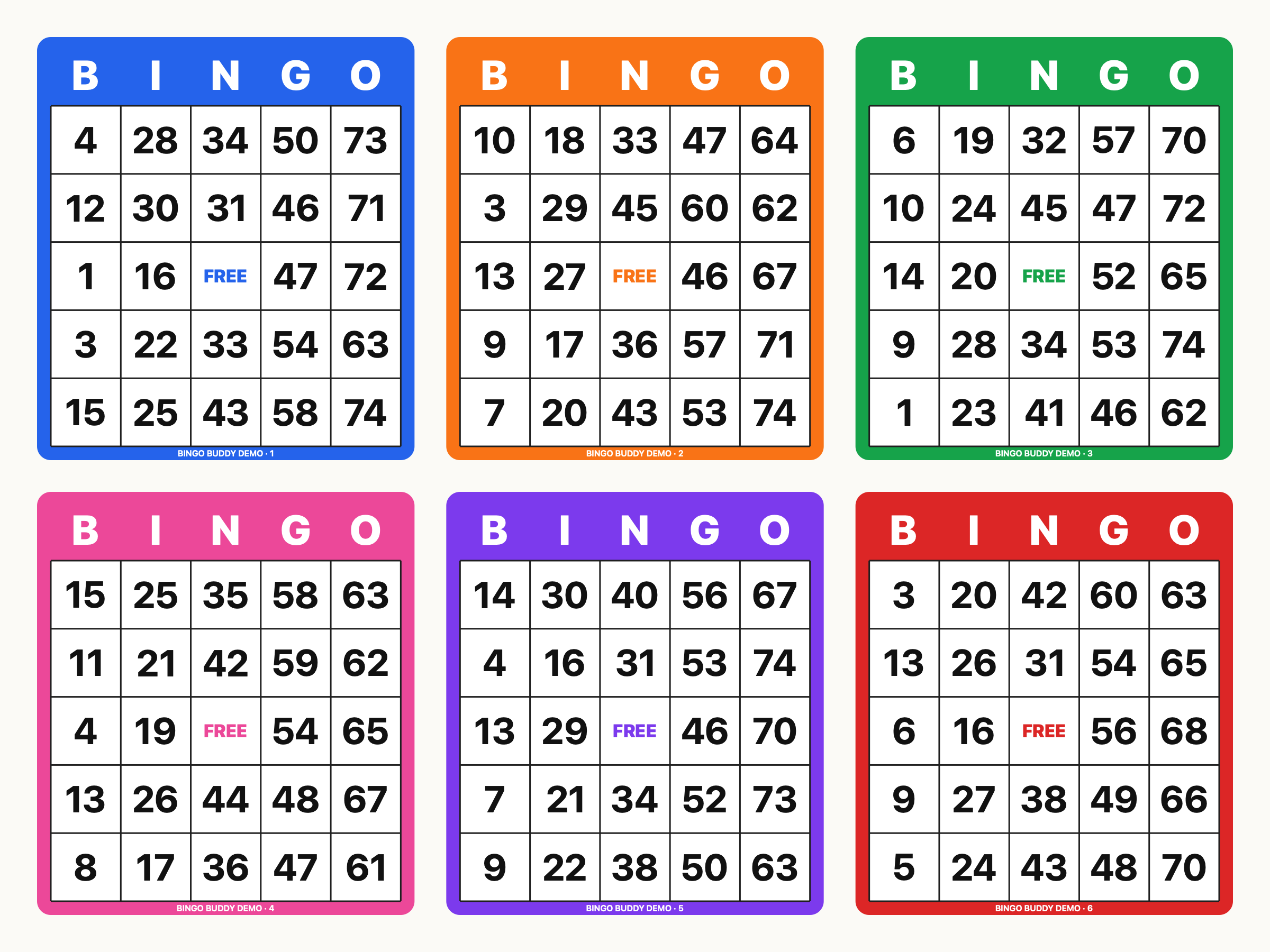
No sheet with you? Use our practice sheet: six cards made for trying Bingo Buddy. Print it, or open it on another screen, like a computer or tablet, and scan it with your iPhone.
Download the practice sheet (PNG)
Questions, problems or ideas? Email info@greenfieldlabs.llc. If a scan went wrong, it helps to tell us your iPhone model and what the sheet looked like. Bingo Buddy is made by Greenfield Labs LLC.